EmbroViewer EXP file viewer
Guide

EmbroViewer / EXP file viewer

EXP file viewer

Preview Melco and Bernina EXP stitch files online. Check design dimensions, stitch count, jumps and colour changes. Free and processed locally.

Free · private · no account

Open an EXP file

Drag files anywhere in this window, or pick them from your computer. Everything is read in your browser — nothing is uploaded.

DST · PES · PEC · JEF · EXP · VP3 · HUS · XXX · U01
colour files: COL · EDR · INF · or drop an SVG to digitize
How it works, supported formats & FAQ ↓

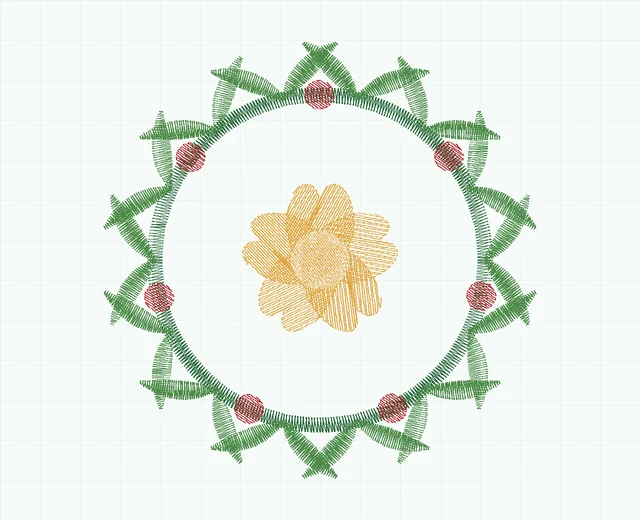
Fern wreath embroidery stitch preview showing 5 colour blocks
Fern wreath · stitch simulation10,478 stitches · 5 colour blocks · 78.6 × 79.2 mm
0 / 0 100%

SVG to stitches

Digitizing works from the vector outlines in your SVG, so edges come out exactly as drawn. A stroked path becomes a satin column of that path's own width; a filled shape gets underlay, angled fill rows and a sealed edge; narrow filled shapes — outlined lettering — are found and satined across the stroke. Export from Illustrator, Figma, Inkscape or Affinity with text converted to outlines.

Artwork nothing loaded

Drop an .svg file here.

vector only — PNG and JPEG are not digitized

Stitch settings

—
0.42 mm
3.2 mm
Advanced
9.0 mm
0.9 mm
1.0 mm²
0.12 mm

Load an SVG to start.

Free · private · no install

EXP file viewer — free and online

EmbroViewer opens .EXP embroidery files — used by Melco commercial machines and many Bernina home machines — in your browser, so you can preview and measure a design without Bernina or Melco software.

What is a EXP file?

EXP is the Melco expanded stitch format. Bernina machines also read EXP, which makes it a common download option for Bernina owners alongside Bernina's own ART format.

An EXP file is almost pure stitch data: two bytes per stitch with no header. Like DST it carries colour-change commands but no thread colours, so the colours you see are placeholders you can change by clicking them.

How to open a EXP file online

  1. Scroll up and click Open files, or drag your .exp file anywhere onto the page.
  2. The design appears instantly. Zoom with the mouse wheel, drag to pan, press Space to play the sew-out.
  3. Choose your hoop from the hoop menu to check the fit, and open Stats for stitch count, size, colours and run time.
  4. Save a PNG preview or the thread list if you need to share it.

What you can check

Machines: Melco commercial machines and Bernina home embroidery machines.

Keep the EXP colour sheet with the stitch file

An EXP file records stitch movements and colour-change commands, but does not provide the actual thread colours for this preview. Choose colours manually from the designer's sheet. Keep any machine-specific companion files supplied with a Bernina or Melco download.

Check an embroidery file before sewing.

Private: your file is never uploaded

EmbroViewer reads the file with code running in your own browser. Nothing is sent to a server, there is no sign-up, and it works on Windows, Mac, Chromebook, iPad and Android.

Frequently asked questions

Why does my EXP file show random colours?

EXP stores colour changes but not colour values. Click any colour in the thread list to set it.

Can I open Bernina ART files?

No. ART is a proprietary Bernina format. Ask for the design as EXP, which Bernina machines can read.

Other embroidery tools

Guides

Last updated 2026-09-30

Release to load