EmbroViewer JEF file viewer
Guide

EmbroViewer / JEF file viewer

JEF file viewer

Open Janome JEF embroidery files in your browser. Check thread colours, stitch count, design size and hoop fit. Free, with no file uploads.

Free · private · no account

Open a JEF file

Drag files anywhere in this window, or pick them from your computer. Everything is read in your browser — nothing is uploaded.

DST · PES · PEC · JEF · EXP · VP3 · HUS · XXX · U01
colour files: COL · EDR · INF · or drop an SVG to digitize
How it works, supported formats & FAQ ↓

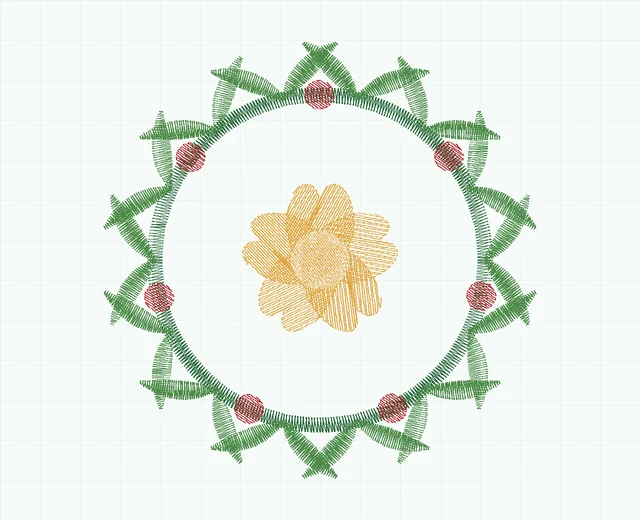
Fern wreath embroidery stitch preview showing 5 colour blocks
Fern wreath · stitch simulation10,478 stitches · 5 colour blocks · 78.6 × 79.2 mm
0 / 0 100%

SVG to stitches

Digitizing works from the vector outlines in your SVG, so edges come out exactly as drawn. A stroked path becomes a satin column of that path's own width; a filled shape gets underlay, angled fill rows and a sealed edge; narrow filled shapes — outlined lettering — are found and satined across the stroke. Export from Illustrator, Figma, Inkscape or Affinity with text converted to outlines.

Artwork nothing loaded

Drop an .svg file here.

vector only — PNG and JPEG are not digitized

Stitch settings

—
0.42 mm
3.2 mm
Advanced
9.0 mm
0.9 mm
1.0 mm²
0.12 mm

Load an SVG to start.

Free · private · no install

JEF file viewer — free and online

EmbroViewer opens .JEF files — Janome's embroidery format — in your browser. Preview the design, see its Janome thread colours, and check whether it fits your hoop before you copy it to the machine.

What is a JEF file?

JEF is the native embroidery format of Janome machines, also used by Elna and other Janome-built models.

Besides the stitches, a JEF file records which Janome thread colour each block uses and which hoop the design was prepared for. EmbroViewer shows both the colours (from Janome's thread chart) and the real design size, and you can switch the hoop outline to see how the design sits in any standard hoop.

How to open a JEF file online

  1. Scroll up and click Open files, or drag your .jef file anywhere onto the page.
  2. The design appears instantly. Zoom with the mouse wheel, drag to pan, press Space to play the sew-out.
  3. Choose your hoop from the hoop menu to check the fit, and open Stats for stitch count, size, colours and run time.
  4. Save a PNG preview or the thread list if you need to share it.

What you can check

Machines: Janome and Elna embroidery machines, including Memory Craft models.

Check Janome design dimensions and colour order

A JEF design can contain palette references and hoop information. Compare the actual design dimensions with your machine's supported sewing area, rather than relying on the file name. The viewer's generic hoop outlines are visual references; they do not certify compatibility with every Janome model.

Choose a format for your machine.

Private: your file is never uploaded

EmbroViewer reads the file with code running in your own browser. Nothing is sent to a server, there is no sign-up, and it works on Windows, Mac, Chromebook, iPad and Android.

Frequently asked questions

How do I view a JEF file on a Mac or Chromebook?

Open EmbroViewer in your browser and drop the file in. It works on any modern browser without installing anything.

Will this JEF design fit my 5×7 hoop?

Choose the 130×180 mm (5″×7″) hoop from the hoop menu above the design. EmbroViewer shows whether the design fits and by how much.

Can EmbroViewer convert JEF to PES or DST?

Not yet. It views JEF files; format-to-format conversion is planned.

Other embroidery tools

Guides

Last updated 2026-09-30

Release to load